Facebook allows you to link various apps to your account so you can sign in using your Facebook credentials. However, connecting apps to Facebook can affect your personal privacy and account security. Therefore, users may want to unlink or remove such apps. Below is a guide from QuanTriMang showing how to do this.
How to Remove Linked Apps via Facebook on Mobile
Step 1:
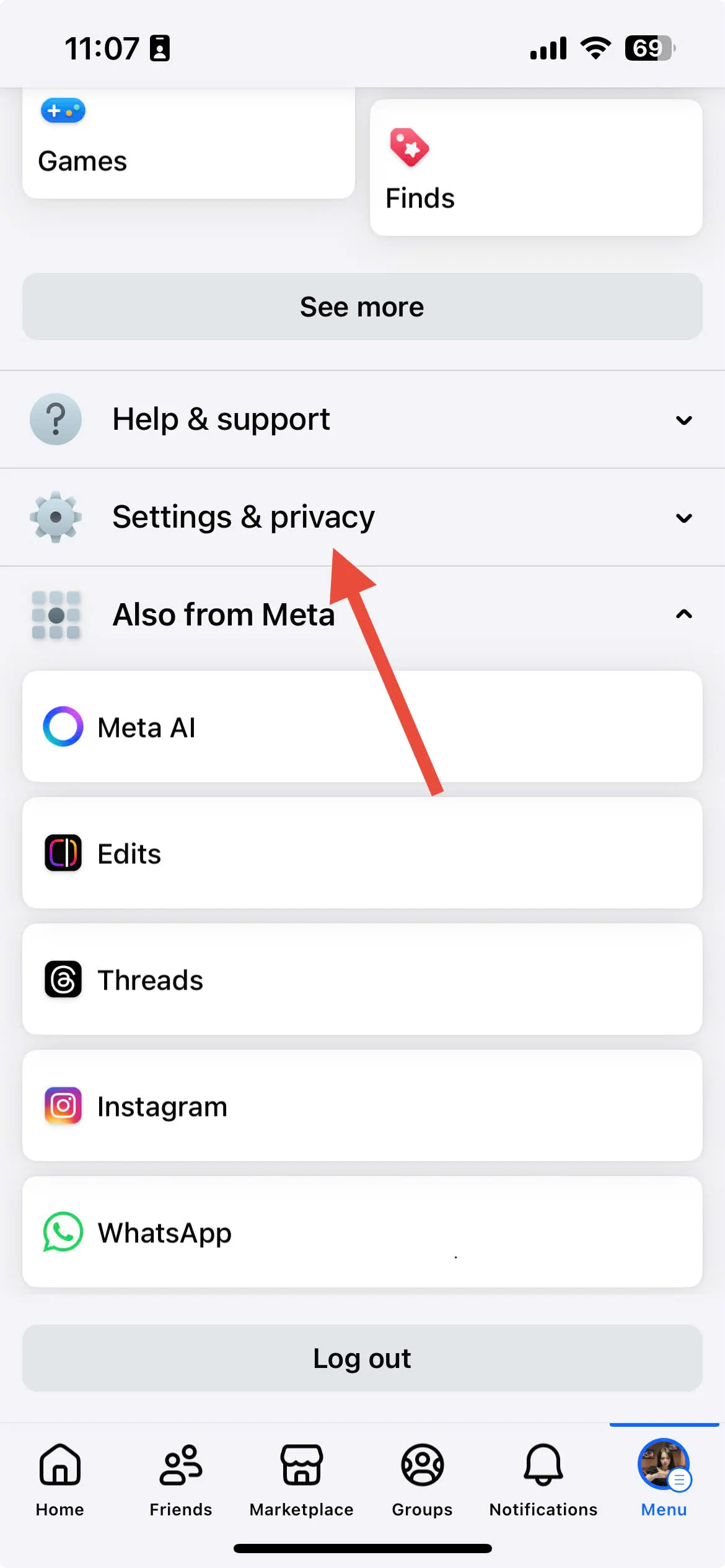
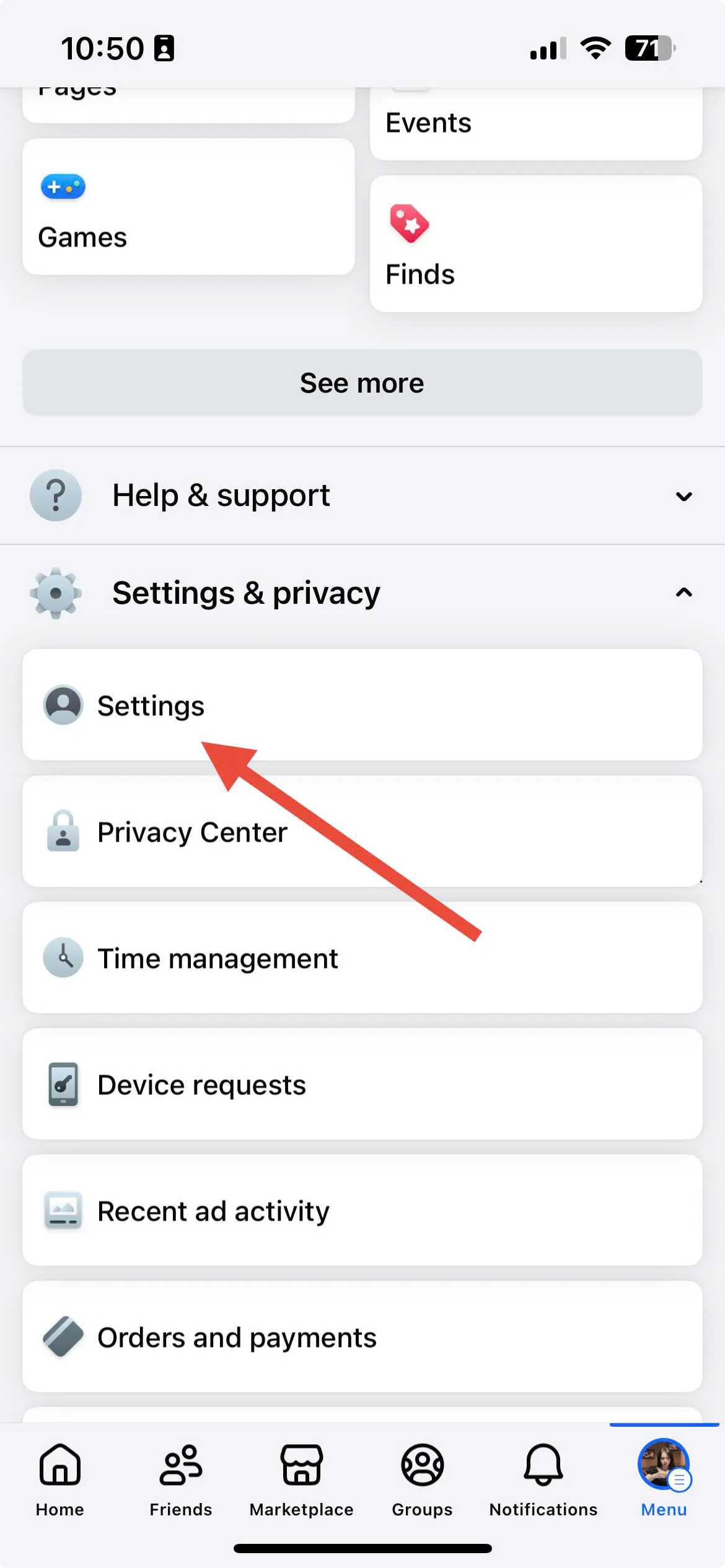
In the Facebook mobile app, tap the three horizontal lines (menu) at the bottom, then choose Settings & Privacy, and then Settings.
Step 2:
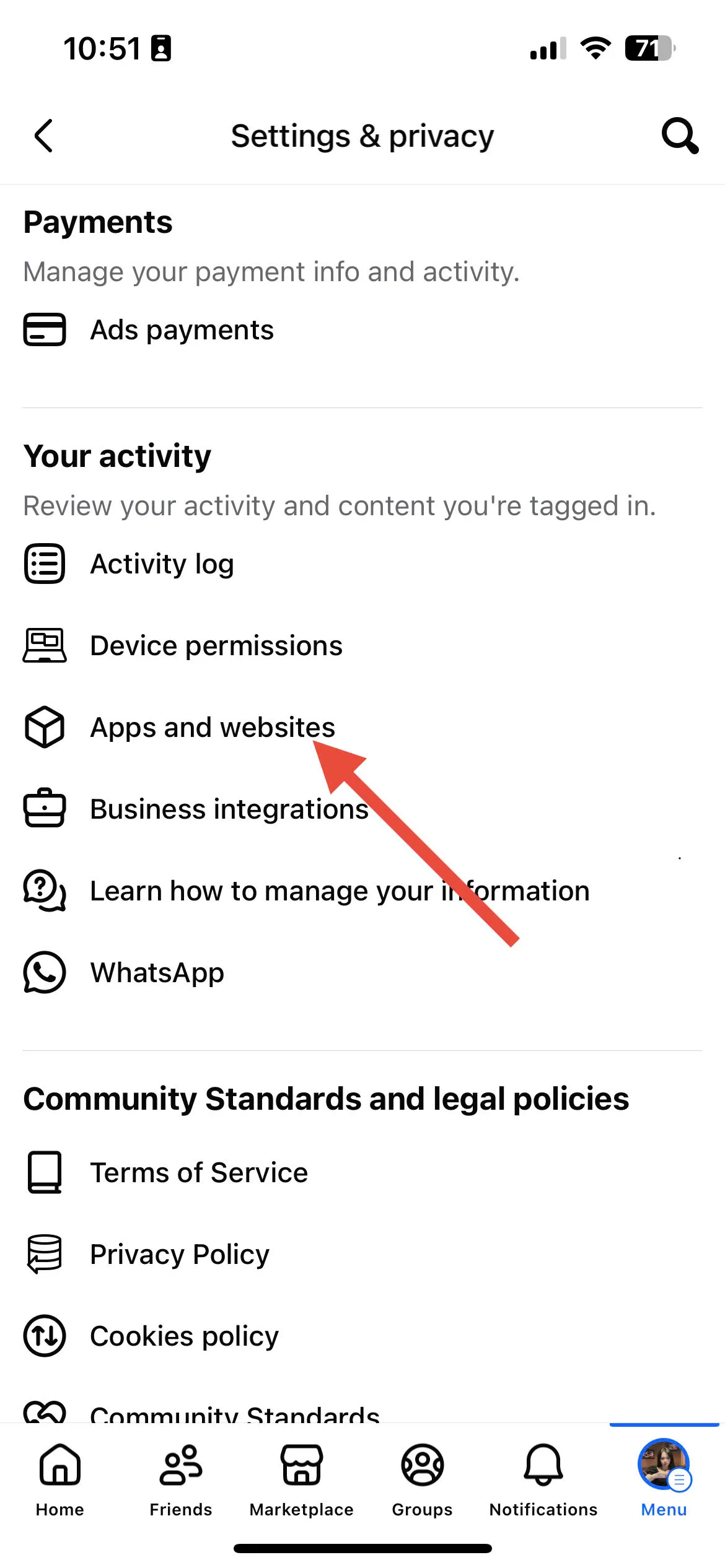
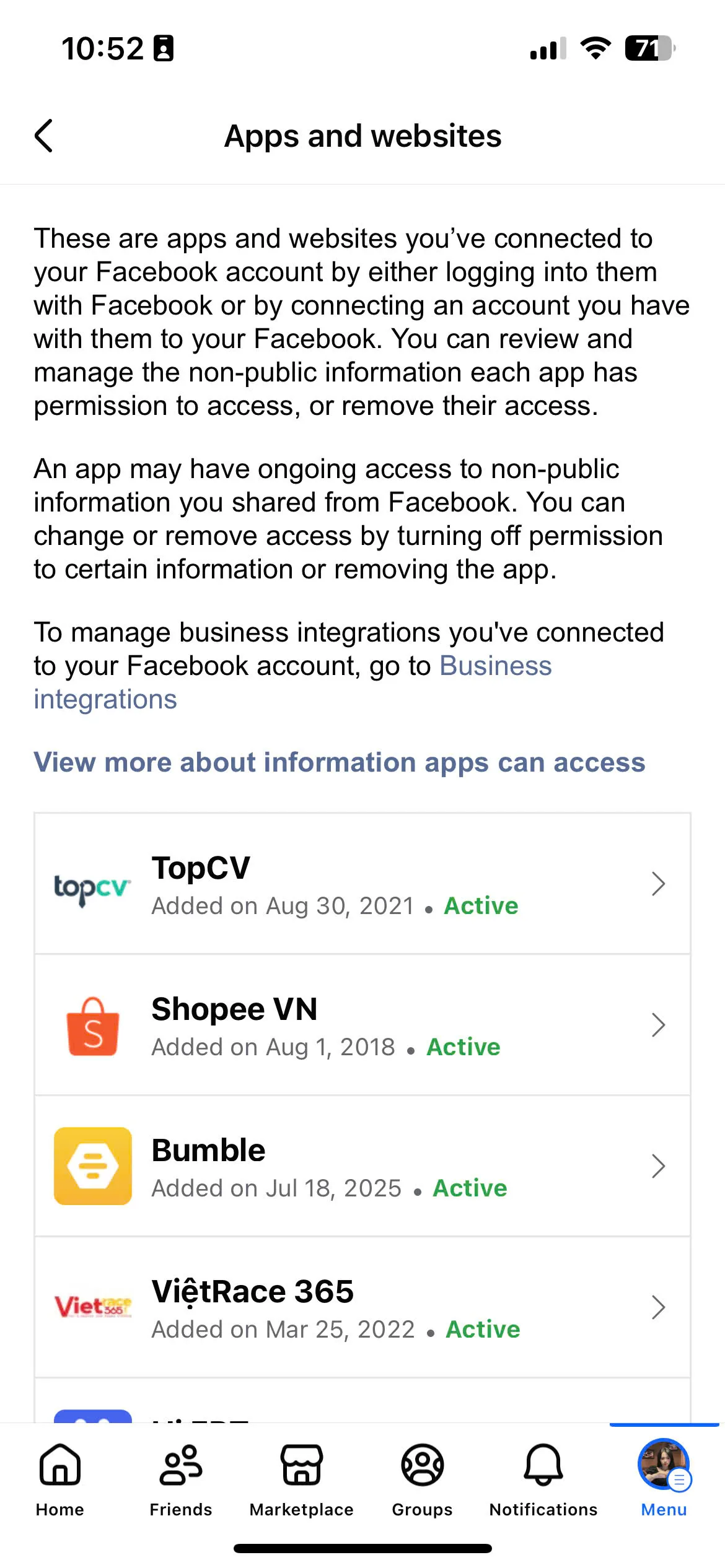
In the new settings interface, scroll to find Permissions, then tap Apps and Websites. You will see a list of all apps and websites linked to your Facebook account—including those whose access has expired and those still valid.
Step 3:
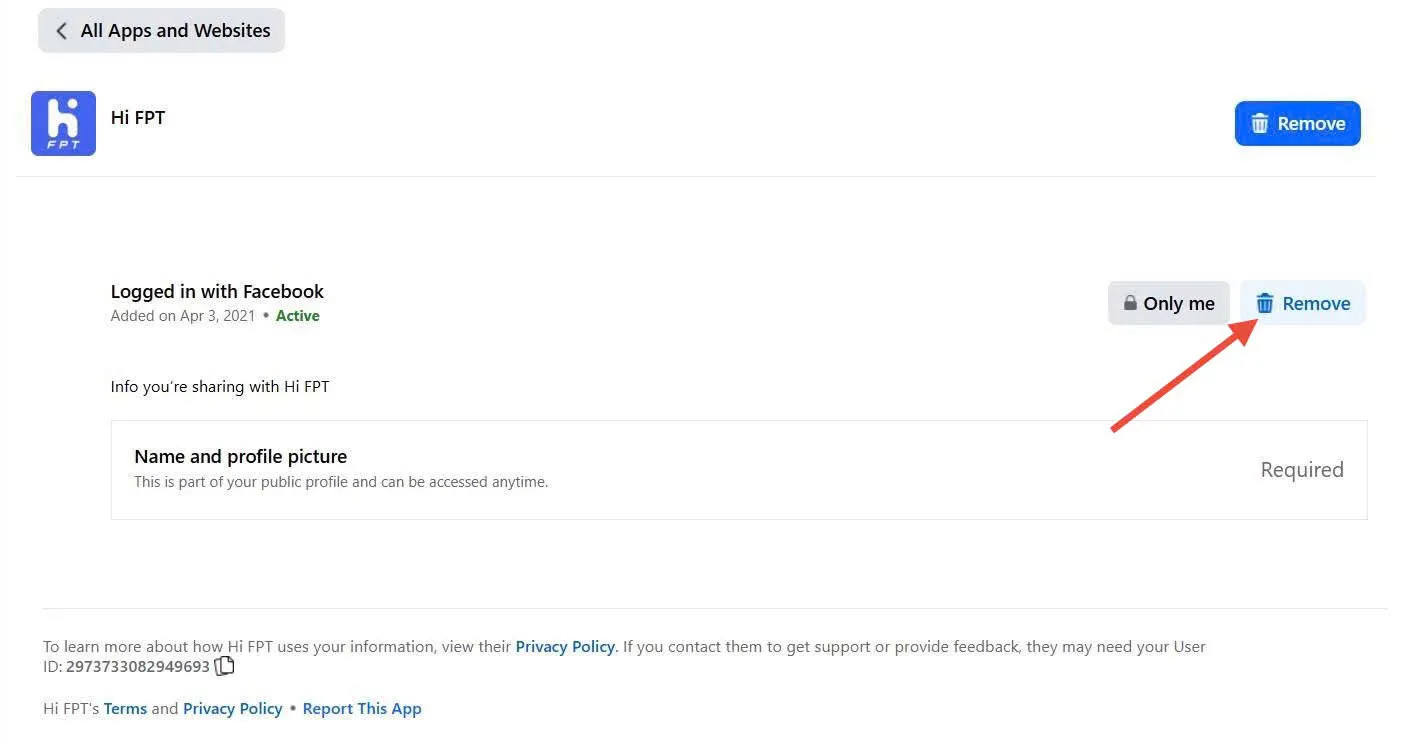
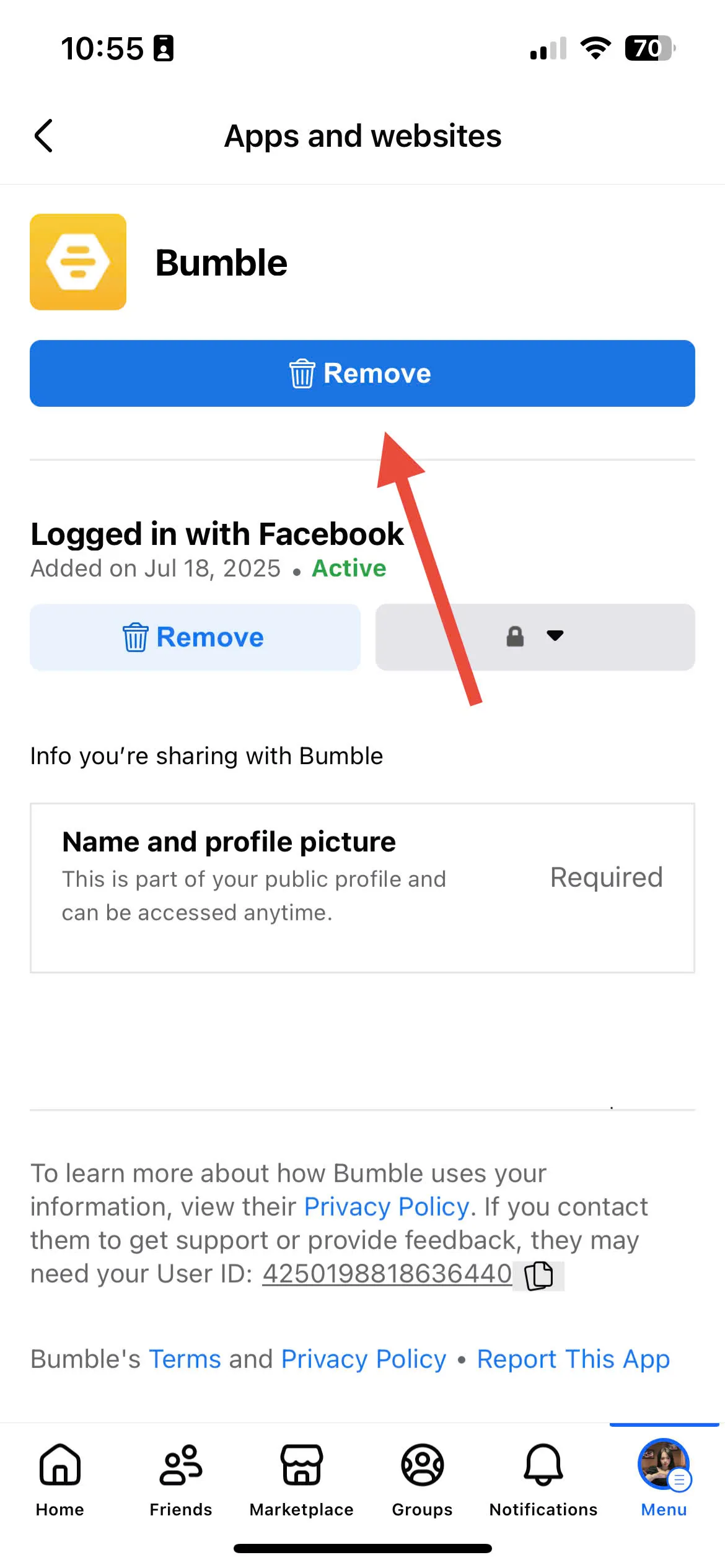
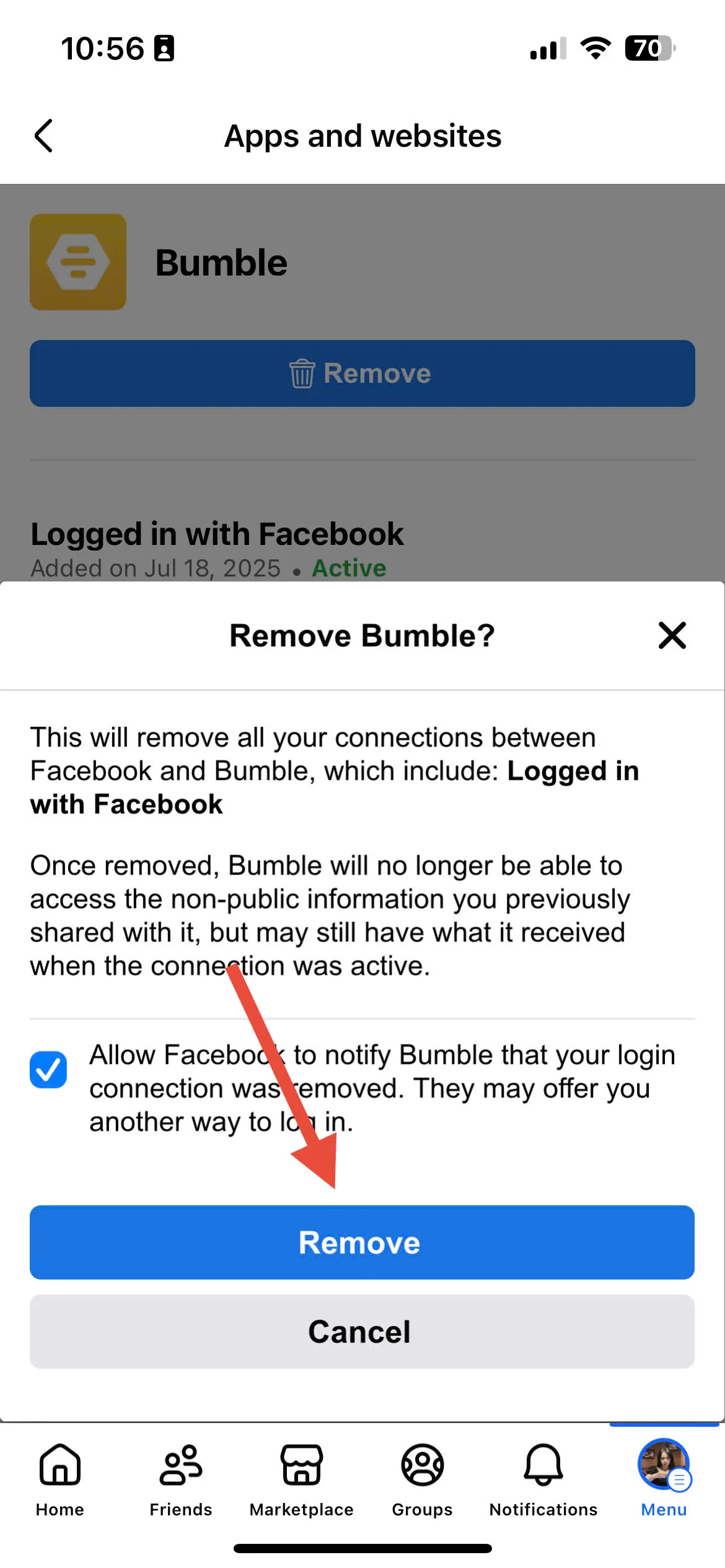
Tap the app you want to remove. In the app info screen, tap Remove or Unlink to break the link between the app and your Facebook account.
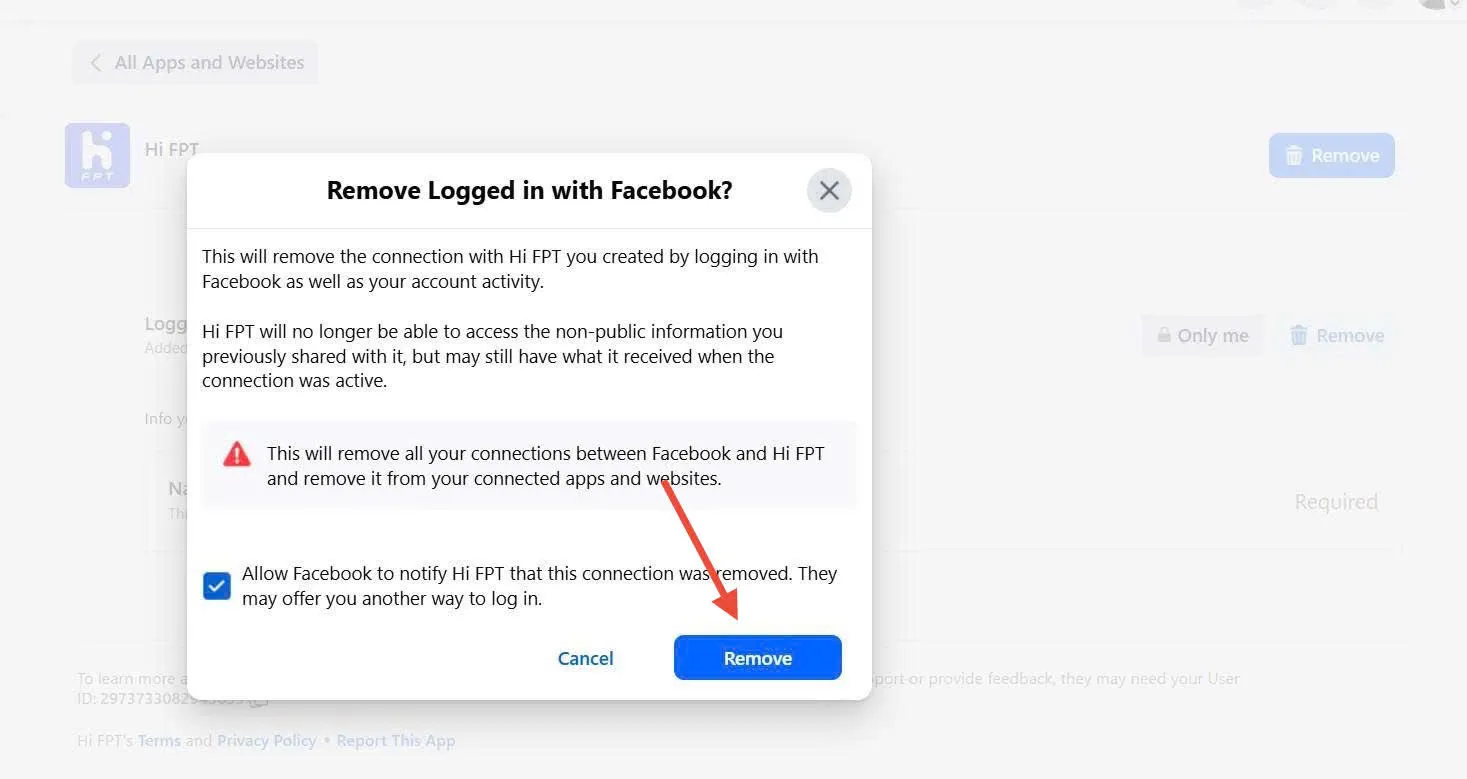
When prompted, you can also choose to delete any posts or videos related to the app, if available. Finally, confirm by tapping Remove / Unlink.
You can repeat the same process to unlink other apps from your Facebook account.
How to Remove Linked Apps via Facebook on PC
Step 1:
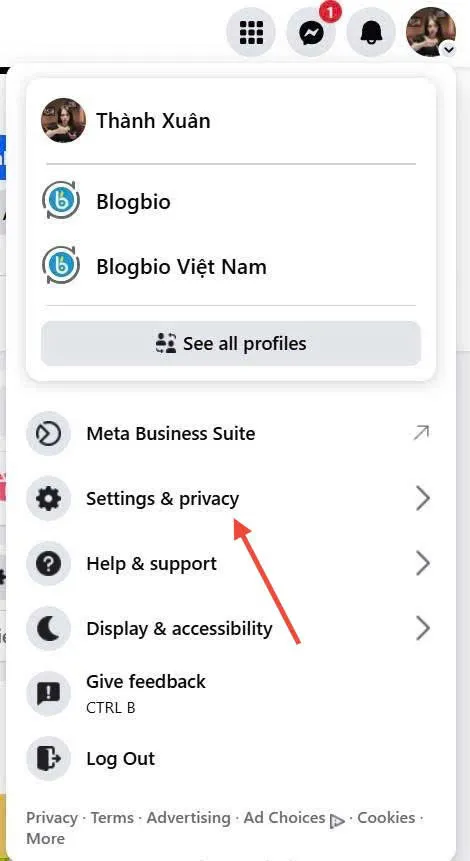
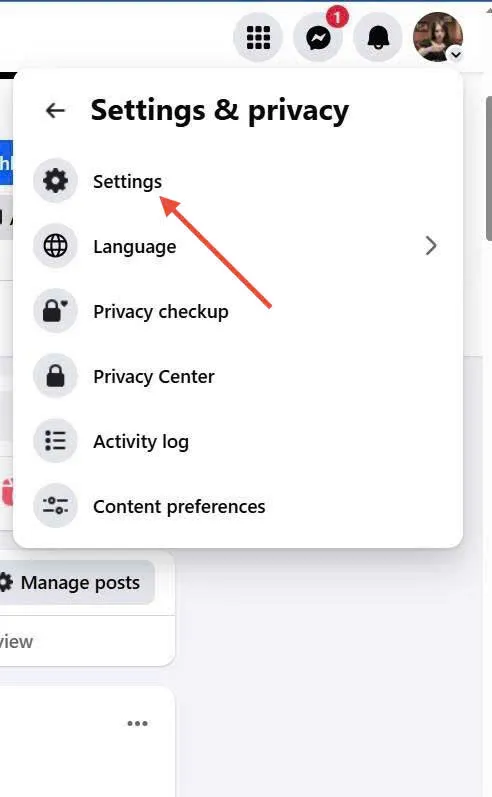
On Facebook’s website, click the triangle (drop-down arrow) and choose Settings & Apps, then go to Settings.
Step 2:
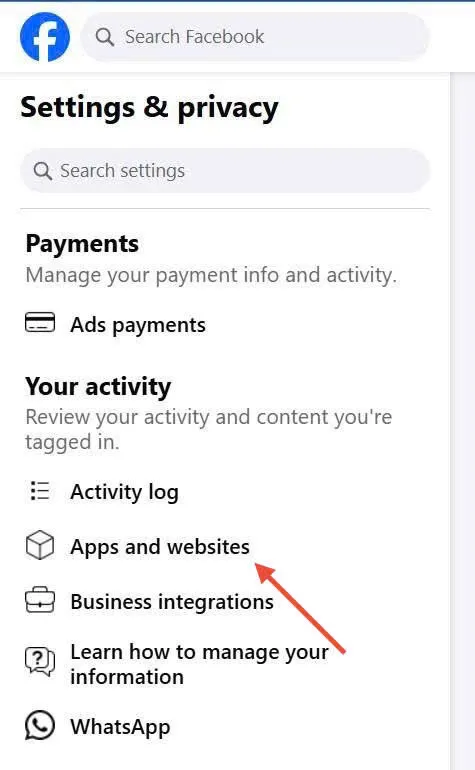
In the settings menu, on the left sidebar click Apps and Websites.
Step 3:
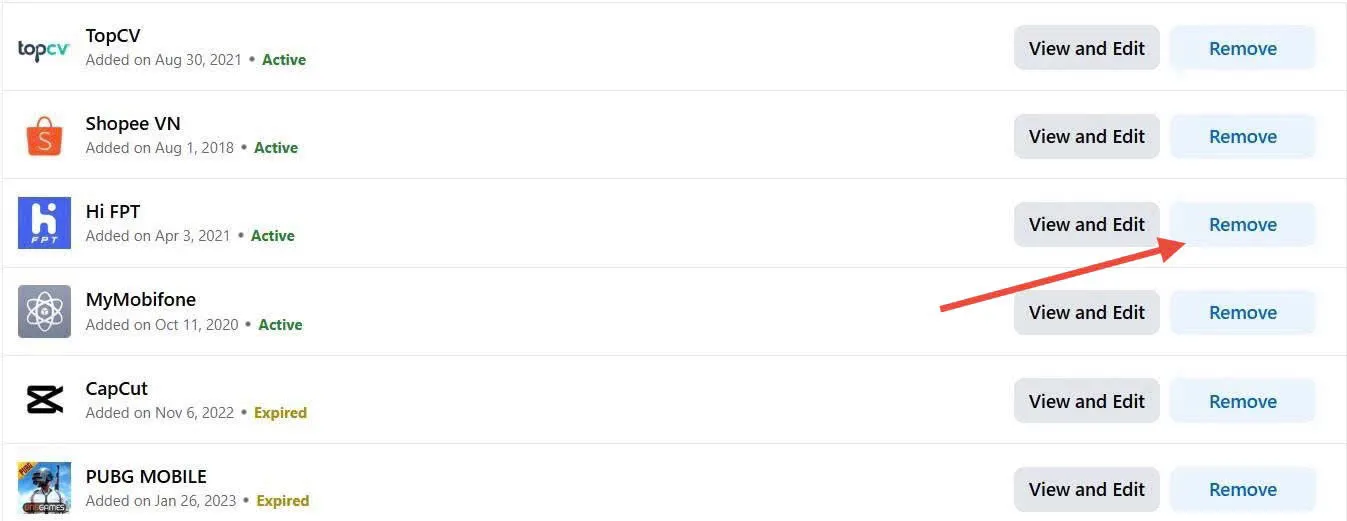
You will see all apps currently linked to your Facebook account. Click on the name of the app you wish to unlink or remove.
Step 4:
On the app’s detail page, click Remove or Unlink. You’ll see a confirmation prompt — click Remove / Unlink again to finalize.